
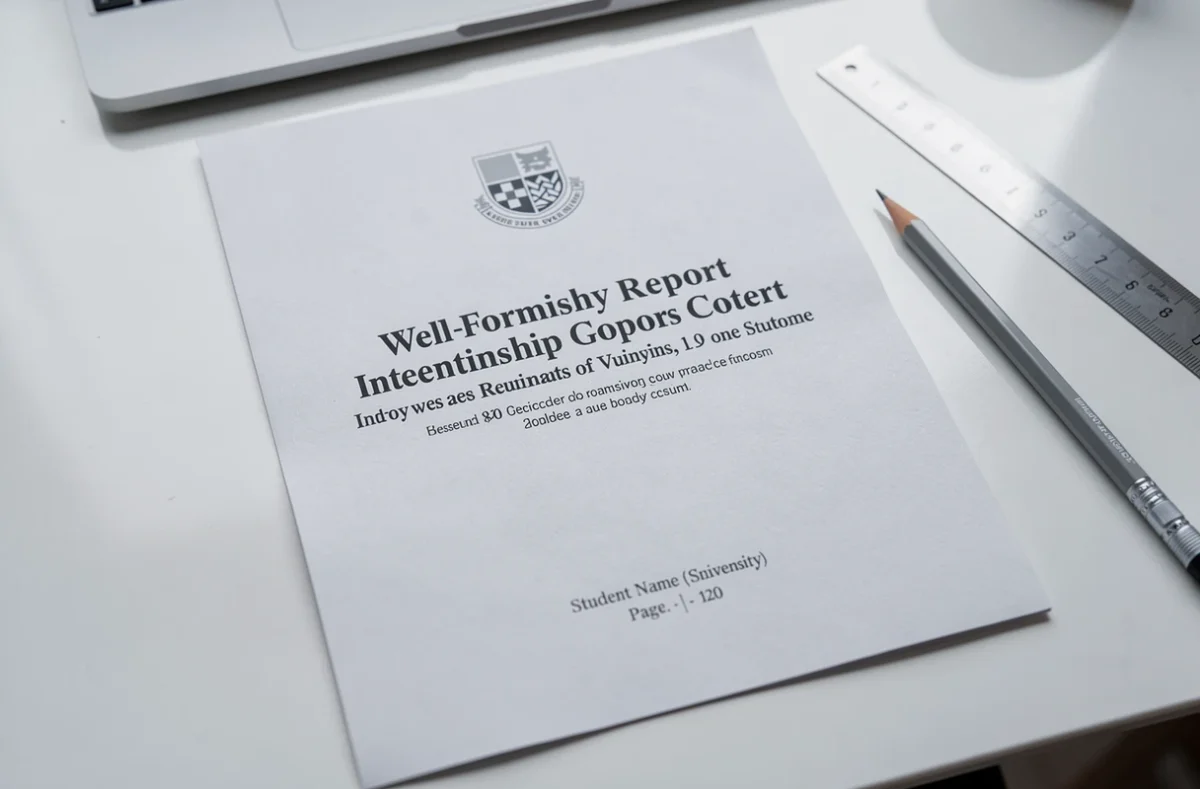
The cover page of an internship report is the first page read by the evaluator. It identifies the author, the institution, the host company, and the subject matter. Pagination, on the other hand, structures the document by allowing the location of each section. These two elements are part of the formatting, but their technical execution poses concrete difficulties, especially in Word or LibreOffice, when it comes to excluding certain pages from the count or managing section breaks.
Section breaks and numbering in Word: the mechanism to understand
The majority of pagination errors stem from a confusion between page breaks and section breaks. A page break pushes the text to the next page, but the headers and footers remain linked to the previous section. A section break, however, creates an independent block where the numbering can start at a different number or be hidden.
To exclude the cover page and the table of contents from the count, the standard method is to insert a section break (next page) just after the table of contents, then uncheck the “link to previous” option in the footer of the new section. The page number can then start at 1 on the first page of the introduction.
Mastering the cover page and pagination of an internship report requires manipulating these settings before writing, not after. Adding section breaks to a document that has already been formatted often shifts existing headers and footers.

Mandatory elements on the cover page of an internship report
The cover page is not a free title page. It meets specific expectations, which vary by institution. Certain mentions are consistently required.
- The student’s first and last name, their program, and year of study, as well as the name of the educational institution.
- The name of the host company, the relevant department, and the dates of the internship. The company’s logo may be added, subject to prior agreement.
- The title of the report, formulated descriptively (it summarizes the mission or issue, not just the name of the position held).
- The name of the company tutor and the educational supervisor, often required to identify the jury’s contacts.
Each institution may impose a specific template. Before designing a customized layout, the first step remains to consult the specifications or writing guide provided by the program.
Confidentiality and company logo: a common pitfall on the cover
Adding the company’s logo to the cover seems natural, but the internship agreement may restrict this right. Some companies prohibit any reproduction of their visual identity in a document distributed outside the internal framework.
Checking the confidentiality clause of the agreement before inserting a logo avoids a late validation refusal. Caution also applies to screenshots of internal tools, named organizational charts, and client data. A screenshot can reveal sensitive information even if the text of the report appears anonymized.
When pseudonymization is necessary (replacing real names with fictitious ones), it does not constitute complete anonymization in the sense of the CNIL. If the context allows for the identification of a person or structure, the legal risk persists. Replacing “Company X” with “Company A” is not sufficient if the sector, location, and workforce described make it identifiable.
Accessibility of the PDF document: structuring beyond appearance
An internship report is often submitted as a PDF file. If the document is distributed online, for example via an educational platform, its technical structure is as important as its visual appearance.
Using the title styles in the word processor (Heading 1, Heading 2, etc.) rather than manually formatted bold text allows for the generation of a clickable table of contents in the PDF. Screen readers and assistive technologies use these tags to navigate the document.
Specifying the language of the document in the file properties is a detail overlooked by most students. The RGAA stipulates that a downloadable office document must, if necessary, have an accessible version. Even without formal obligation in the context of an internship, a properly structured PDF facilitates reading for the entire jury.
Automatic table of contents and consistent pagination
The automatically generated table of contents by Word or LibreOffice directly depends on the styles applied to the headings. If a heading is simply bolded without using the “Heading 2” style, it will not appear in the automatic table of contents.
To ensure that the page numbers in the table of contents match the final document, updating the table of contents after each modification remains the only reliable method. A right-click on the table, then “Update Field” (or “Update Entire Table”), synchronizes headings and numbers.
Sober layout or elaborate design: arbitrate according to context
The temptation to produce a very graphic cover exists, driven by the templates available online. The choice depends on the level of study and the jury’s expectations.
In BTS or professional degree programs, a sober layout with a clear visual hierarchy (well-visible title, aligned information, colors limited to two or three) is sufficient in the vast majority of cases. In design or communication schools, more advanced graphic work may be expected, or even evaluated.
Readability takes precedence over graphic originality. A title in a fancy small font, a dark background that makes the text hard to read, or an excess of decorative elements detracts from the document. The evaluator should be able to identify the student’s name, the title of the report, and the host company within seconds.
A final point often forgotten: pagination does not concern the appendices in the same way as the main text. Some institutions require separate numbering for the appendices (A-1, A-2) or exclude them from the main count. Checking this local guideline before the final formatting avoids having to redo the entire document the day before submission.